(This help page describes the latest version of Bingo Card Printer - 6.01)
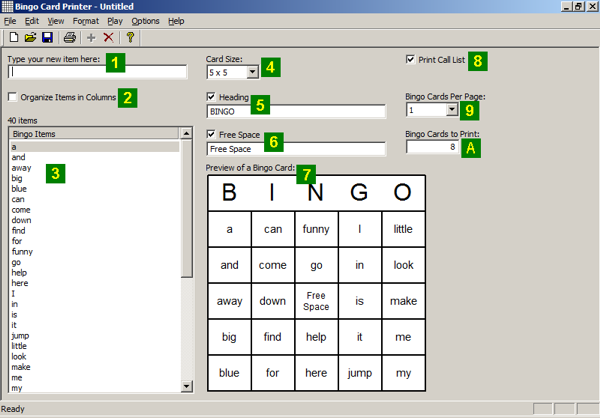
Editing Here is what the main screen of Bingo Card Printer will look like after
you have created a New project
(note: the green numbers are not
actually part of the screen, but are used to here indicates various features
on the screenshot).
The screen allows you to review and edit items in the list of bingo items
(the items that will be printed on bingo cards), as well as change the
settings that affect all cards.
The features on screen are:
If you want add an item, enter it here, then press
the Enter or Return key on the keyboard.
If you want to add many items quickly, (for example by pasting items from
another program), you can use the Add Multiple Items... option on the
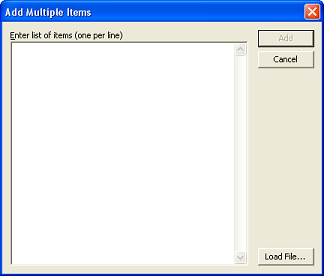
Edit menu. This displays this dialog box:
Enter items, one per line, in the field provided.
If you wish to paste text from another program, while the caret is
in the entry space, press Ctrl+V. You can use this
feature to paste from a
word processor
or
spreadsheet.
In fact, this feature works particularly well with
spreadsheets
such as Excel or
OpenOffice.org's Calc,
as you can simply highlight and Copy a column of items in the spreadsheet,
and then paste it here.
You can also read a text file in using the Load File... button.
Click Cancel if you wish to close the dialog without adding
any of the items that you have entered.
Click Add to add the items from the dialog box.
If some of the items that you have entered
can not be added (for example: if they contain too many characters or are duplicates),
you will be told alerted to that fact, but given
the option to add the remaining items.
The
Organize Items in Columns option,
when checked, tells the software
that you would like to produce bingo cards with particular items assigned to particular columns (rather than producing bingo
cards where any item can appear in any space).
The software will automatically assign column numbers to the items, based on their order in the over all list of items
(labelled 3 in the screenshot), and tries to assign equal number of items to each column.
For example:
If you were to check this option when you have a 5 x 5 bingo card and have entered 50 items in your list,
then the first 10 items would be assigned to the first column ("column 1"), the next 10 items to the second column
("column 2"), and so on for the third, fourth, and fifth columns.
If you were to check this option when you have a 3 x 3 bingo card and have entered 15 items in your list,
then the first 5 items would be assigned to the first column ("column 1"), the next 5 items to the second column
("column 2"), and the last 5 items to the third column ("column 3").
There is one special case that we mention for completeness: If the number of items can not be divided equally between the columns,
the first extra item is assigned to the left most column, the second extra item to the right most column, the third one to the
second column from the left, the third one to second column from the right, and so on.
Here are some examples:
If you were to check this option when you have a 5 x 5 bingo card and have entered 51 items in your list,
the first column ("column 1") would contain 11 items, and the remaining columns would contain 10 items each.
If you were to check this option when you have a 5 x 5 bingo card and have entered 52 items in your list,
the first column ("column 1") and the last column ("column 5") would both contain 11 items,
and the remaining columns would contain 10 items each.
If you were to check this option when you have a 5 x 5 bingo card and have entered 53 items in your list,
the first column ("column 1"), the last column ("column 5"), and the second column
("column 2"), would each contain 11 items,
and the remaining columns would contain 10 items each.
If you find this slightly confusing, there is a simple solution: either don't check this option, or simply make sure the number of items you
enter can be evenly divided between the columns.
This area shows a list of items
that you have added so far, as well as a count of the number of items.
Additionally, if Organize Items in Columns, labelled 2, is checked, this
area will show for each item the column number that it is assigned to (column numbers are 1 for the left most column
on the bingo card, 2 for the next most left, and so on).
You can view, modify, and use this list of items as follows:-
You
can use the scrollbar to move through the items if there are more than
will fit on the screen.
If you wish to copy the current list of items to the Clipboard
(for example to paste into another program such as a
word processor
or
spreadsheet),
select Copy Item List on the Edit menu.
You can delete an item by selecting it,
and then using the Delete Item
option on the Edit menu.
You can delete all the items using Delete All Items... on the Edit
menu.
You can move the currently selected item in the list of items using the options
Move Item To Top, Move Item Up, Move Item Down and Move Item To Bottom
which are all found on the Edit menu.
This
will affect the order
on the screen and in the preview (labelled 7
on the screenshot), but does not affect calling or
printing (unless Organize Items in Columns, labelled 2, is checked, in which case it might, because it might result in items being placed in different columns).
You can change the order of the items, into a random order, using
Randomize Order on the Edit menu.
This
will affect the order
on the screen and in the preview (labelled 7
on the screenshot), but does not affect calling or
printing (unless Organize Items in Columns , labelled 2, is checked, in which case it might, because it might result in items being placed in different columns).
If Organize Items in Columns, labelled 2, is checked,
you can also
Randomize Order Within Columns on the Edit menu.
This will affect the order of items in each column, but will not
cause any items to shift between columns.
As a result, this option will not affect the printing (unless Organize Items in Columns, labelled 2, is checked)
or calling.
You can sort the items into order using Sort on the Edit
menu. If all the items are numbers, they will be sorted into ascending
numerical order,
otherwise they will be sorted alphabetically.
As with Randomize Order, the Sort option
will affect the order
on the screen and in the preview (labelled 7
on the screenshot), but does not affect calling or
printing (unless Organize Items in Columns, labelled 2, is checked, in which case it might, because it might result in items being placed in different columns).
The Card Size
option allows you to choose the size of bingo cards that you wish to generate.
You can choose 3 x 3, 4 x 4, 5 x 5, 6 x 6, or
7 x 7.
Note: If you choose 4 x 4 or 6 x 6 the Free Space options
(labelled 6 on the screenshot)
will not available
and will not be shown.
The Heading option
allows you to choose whether to place a heading on each bingo card, and what
the heading should say. This option is provided because in some variations
of the bingo game, the heading at the top of the card is used in game play.
If you check this option, whatever Heading word or phrase is drawn
such that the letters are evenly spaced out across the heading area.
The Free Space
option allows you to choose whether to play with a free space, and what
the text within the free space should say.
Note: If you choose a Card Size (labelled 4 on the screenshot) of
4 x 4 or 6 x 6, then the Free Space options will not available and will not be shown.
The Preview
shows an approximate example of what the final bingo cards will look like
(although of course the items on the cards will be shuffled around when
you print them).
The
Print Call List options allows you to choose if you wish to
print a call
list (containing the bingo items in random order, so
you can use this list when calling)
as well as the bingo cards.
The
Bingo Cards Per Page option allows you to choose how many
bingo cards should be placed on each page when you print
The
Bingo Cards to Print option allows you to choose how many bingo cards
you wish to print - from 1 to 9999.
Disclosure:
Our company's websites' content (including this website's content) includes advertisements for
our own company's websites, products, and services,
and for other organization's websites, products, and services.
In the case of links to other organization's websites,
our company may receive a payment, (1) if you purchase products or services,
or (2) if you sign-up for third party offers, after following links from this website.
Unless specifically otherwise stated, information about other organization's products and services,
is based on information provided by that organization,
the product/service vendor, and/or publicly available information - and should
not be taken to mean that we have used the product/service in question.
Additionally, our company's websites contain some adverts which we are paid
to display, but whose content is not selected by us, such as Google AdSense ads. For more
detailed information, please see Advertising/Endorsements Disclosures
Our sites use cookies, some of which may already be set on your computer. Use of our site
constitutes consent for this. For details, please see Privacy.
Click privacy for information about our company's privacy, data collection and data retention policies, and your rights.
"Box" and "Cover" images are shown for decorative purposes only, and do not
represent the actual products which are delivered as Internet downloads.
"Box" and "Cover" images on this site were created using
CoverFactory.
Register Now/Buy Now! buttons used on this website,
are from the CB Vendor Graphics Pack.
CERTAIN CONTENT THAT APPEARS ON THIS SITE COMES FROM AMAZON SERVICES LLC. THIS CONTENT IS PROVIDED 'AS IS' AND IS SUBJECT TO CHANGE OR REMOVAL AT ANY TIME. CERTAIN CONTENT THAT APPEARS ON THIS SITE,COMES FROM AMAZON EU S.à r.l. THIS CONTENT IS PROVIDED 'AS IS' AND IS SUBJECT TO CHANGE OR REMOVAL AT ANY TIME.
In Association With Amazon.com Answers 2000 Limited is a participant in the Amazon Services LLC Associates Program, an affiliate advertising program designed to provide a means for sites to earn advertising fees by advertising and linking to Amazon.com. In Association With Amazon.co.uk Answers 2000 Limited is a participant in the Amazon EU Associates Programme, an affiliate advertising programme designed to provide a means for sites to earn advertising fees by advertising and linking to Amazon.co.uk. As an Amazon Associate, our company earns from qualifying purchases. Amazon, the Amazon logo, Endless, and the Endless logo are trademarks of Amazon.com, Inc. or its affiliates.