(This help page describes the latest version of Bingo Card Printer - 6.01)
Formatting You can use the Colors..., Fonts... and
Advanced Layout... options on the
Format menu to change the colors, fonts and appearance
of the bingo cards.
Any changes that you make will be shown in the on-screen preview,
as well as in the bingo cards that you eventually print.
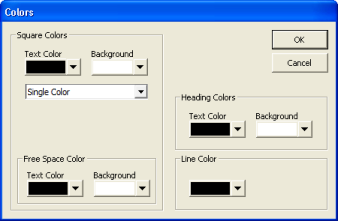
When you click Colors..., the following dialog box will
be displayed:
Please note: Some options may not be displayed if you have turned
off the Heading or Free Space in the
main screen (or if Free Space is inapplicable because you have chosen
a Card Size of 4 x 4 or 6 x 6 in the main screen).
Please also note: If you use colors, and print to a black and white
printer, your printer will be still be black and white! So, in
this case, the final results, may not appear exactly as
shown in the screen previews.
The Square Colors group contains options
that allow you to choose the colors for the squares
on the bingo cards.
You can choose the primary Text Color and Background Color for the squares on the bingo cards
The dropdown box allows you to select Single Color, Checker Board, Horizontal Stripes, Vertical Stripes, Cross or Diagonal Cross.
If you choose any option other than Single Color you will also be able to choose a secondary
Text Color and Background Color which will be combined with your primary selection to produce the chosen layout.
If your bingo card contains a Free Space (controlled from the settings on main screen),
you will also be able to choose the Text Color and Background Color for this square separately.
The Heading Colors group allows you to choose
the colors to be used for the bingo card's heading. These
options will not be shown if you have turned off Heading
on the main screen.
The Line Color group allows you to choose the color
of the lines used to draw the bingo card.
When you have finished choosing colors, click OK
to close the dialog and retain the changes.
Otherwise click Cancel
to close the dialog and discard the changes.
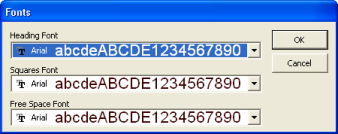
When you click Fonts..., the following dialog box
will be displayed:
Please note: Some options may not be displayed if you have turned
off the Heading or Free Space in the
main screen (or if Free Space is inapplicable because you have chosen
a Card Size of 4 x 4 or 6 x 6 in the main screen).
The Heading Font
dropdown box allows you to choose the font for heading of your
bingo cards.
The Squares Font
dropdown box allows you to choose the font for the squares on your
bingo cards. This font is also used for calling.
The Free Space Font
dropdown box allows you to choose the font for the free space on your
bingo cards.
When you have finished choosing colors, click OK
to close the dialog and retain the changes. Otherwise click Cancel
to close the dialog and discard the changes.
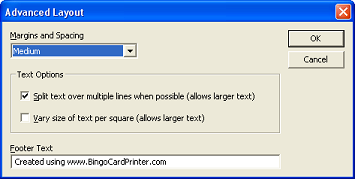
When you click Advanced Layout..., the following dialog box
will be displayed:
The Margin and Spacing
dropdown box allows you to choose the size of the margins on the page,
and the amount of spacing between bingo cards, when you print.
The Text Options
group contains options for altering how text is printed on the bingo
cards. Split text over multiple lines when possible and
Vary size of text between squares can both checked or unchecked.
In both cases, the options tend to allow larger printing of text on
the bingo cards.
Footer Text allows you to choose what is printed in the
footer of area of your pages.
Disclosure:
Our company's websites' content (including this website's content) includes advertisements for
our own company's websites, products, and services,
and for other organization's websites, products, and services.
In the case of links to other organization's websites,
our company may receive a payment, (1) if you purchase products or services,
or (2) if you sign-up for third party offers, after following links from this website.
Unless specifically otherwise stated, information about other organization's products and services,
is based on information provided by that organization,
the product/service vendor, and/or publicly available information - and should
not be taken to mean that we have used the product/service in question.
Additionally, our company's websites contain some adverts which we are paid
to display, but whose content is not selected by us, such as Google AdSense ads. For more
detailed information, please see Advertising/Endorsements Disclosures
Our sites use cookies, some of which may already be set on your computer. Use of our site
constitutes consent for this. For details, please see Privacy.
Click privacy for information about our company's privacy, data collection and data retention policies, and your rights.
"Box" and "Cover" images are shown for decorative purposes only, and do not
represent the actual products which are delivered as Internet downloads.
"Box" and "Cover" images on this site were created using
CoverFactory.
Register Now/Buy Now! buttons used on this website,
are from the CB Vendor Graphics Pack.
CERTAIN CONTENT THAT APPEARS ON THIS SITE COMES FROM AMAZON SERVICES LLC. THIS CONTENT IS PROVIDED 'AS IS' AND IS SUBJECT TO CHANGE OR REMOVAL AT ANY TIME. CERTAIN CONTENT THAT APPEARS ON THIS SITE,COMES FROM AMAZON EU S.à r.l. THIS CONTENT IS PROVIDED 'AS IS' AND IS SUBJECT TO CHANGE OR REMOVAL AT ANY TIME.
In Association With Amazon.com Answers 2000 Limited is a participant in the Amazon Services LLC Associates Program, an affiliate advertising program designed to provide a means for sites to earn advertising fees by advertising and linking to Amazon.com. In Association With Amazon.co.uk Answers 2000 Limited is a participant in the Amazon EU Associates Programme, an affiliate advertising programme designed to provide a means for sites to earn advertising fees by advertising and linking to Amazon.co.uk. As an Amazon Associate, our company earns from qualifying purchases. Amazon, the Amazon logo, Endless, and the Endless logo are trademarks of Amazon.com, Inc. or its affiliates.